


How to Fix an Employee Missing From the Payroll List
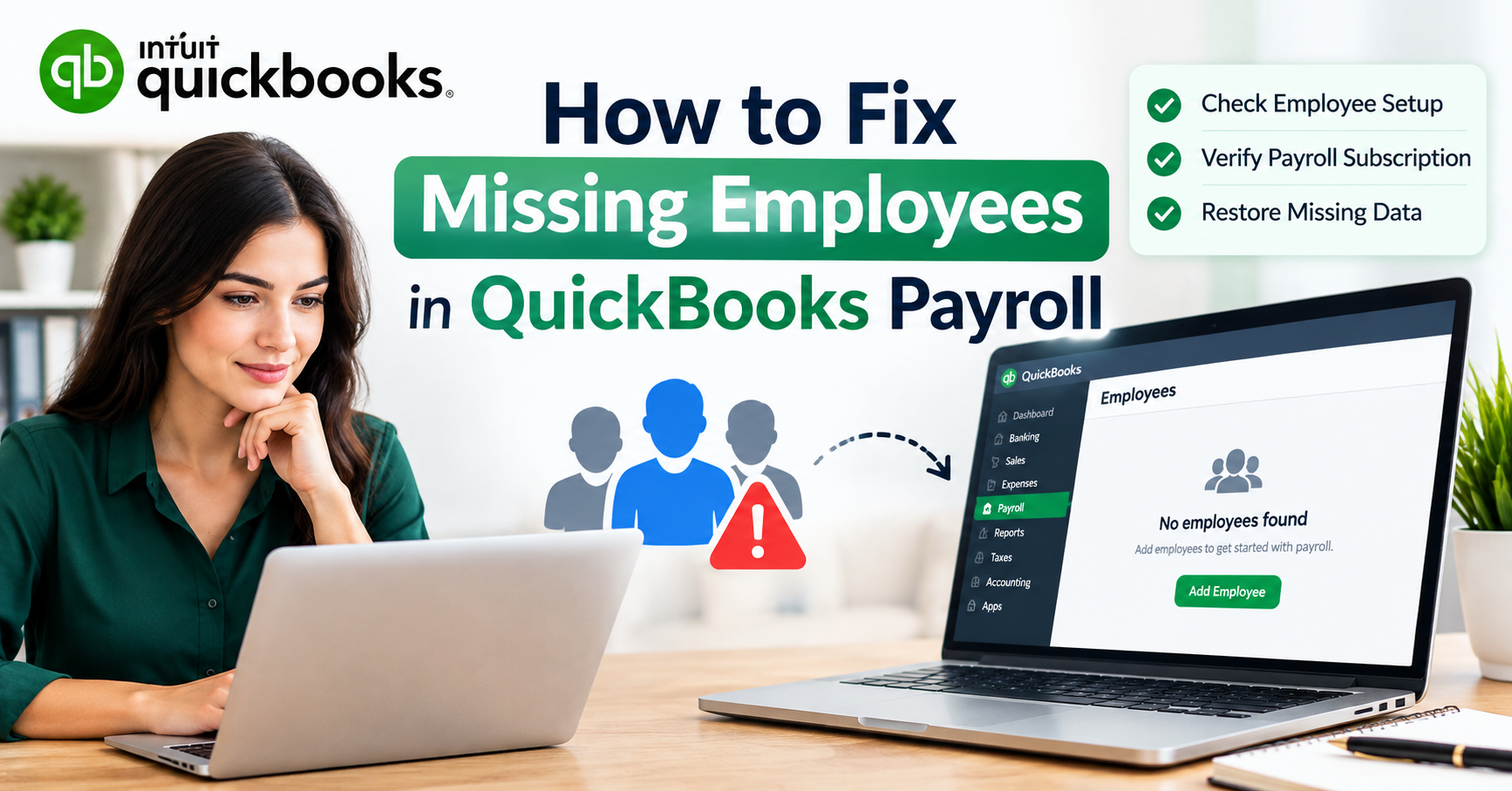
Managing employee payroll records requires accurate information and consistent settings. When a worker suddenly disappears from the payroll selection screen, it can delay processing and create unnecessary confusion.
Employee missing from payroll list issues can often be connected to employee status, payroll schedules, filters, incomplete information, or company file settings. Checking these areas carefully can help identify the cause before making unnecessary changes.
Why Is an Employee Missing From the Payroll List?
There can be several reasons an employee does not appear in the expected payroll list. The most common possibilities include:
-
The employee is marked inactive
-
The employee was added to a different company file
-
The payroll schedule is incorrect
-
Employee information is incomplete
-
Filters are hiding the employee
-
The employee was recently added
-
Duplicate employee records exist
-
Payroll settings were changed
-
QuickBooks needs to be refreshed or updated
-
A company file or application issue is affecting employee visibility
Identifying whether the problem affects one employee or several employees is also important. If only one employee is missing, focus on that employee's profile first. If many employees are missing, investigate broader payroll settings.
Check Whether the Employee Is Active
One of the first things to check is the employee's status.
An employee who is marked inactive may not appear in the normal employee or payroll list. This can happen when an employee leaves the company and the record is made inactive, or when an existing employee's status is changed accidentally.
Open the employee area and review the employee's current status. If the employee should be available for payroll, confirm that the record is active.
Do not immediately create a second profile if the employee is not visible. First determine whether the original record is inactive or hidden.
Review Payroll Filters
Filters can affect which employees are displayed.
If the payroll screen is showing only certain employees, departments, schedules, or payment groups, the missing employee may simply be excluded from the current view.
Review available filters and selection options. Remove unnecessary restrictions and check the employee list again.
This is particularly important when the employee can be found in the general employee area but does not appear during payroll processing.
Verify the Payroll Schedule
Payroll schedules determine when employees are paid and how payroll is organized.
An employee assigned to a different payroll schedule may not appear when you are processing payroll for another schedule.
Review the employee's payroll schedule and compare it with another employee who should be processed during the same payroll period.
If the employee is supposed to be part of the current payroll run, verify that the schedule and pay frequency are appropriate.
Check the Employee Profile
Open the employee's profile and review the available information.
Depending on the QuickBooks product and payroll configuration, important details may include:
-
Employee name
-
Employment status
-
Hire date
-
Pay type
-
Pay rate
-
Payroll schedule
-
Tax information
-
Earnings
-
Deductions
-
Benefits
-
Payment method
An incomplete or incorrectly configured profile may prevent the employee from appearing as expected.
Avoid changing information simply to make the employee appear. First determine which setting is actually causing the problem.
What to Do When an Employee Is Missing
If an employee cannot be found during payroll processing, start with simple checks before making major changes.
First, confirm that you are working in the correct company file. Then review the employee's active status, payroll schedule, filters, and profile information.
If the employee appears in the general employee list but cannot be selected during payroll processing, compare the employee's payroll settings with another employee who is appearing correctly.
This can help identify whether the problem is related to the employee record or to the current payroll workflow.
Check for Duplicate Employee Records
Duplicate employee profiles can make payroll management difficult.
For example, an employee may already exist under one name, while another record was accidentally created with a slightly different spelling.
Before creating a new profile, search the employee list carefully. Check active and inactive records where appropriate.
If duplicate records are found, do not immediately delete one. Historical payroll information can make employee record changes more complicated.
Recently Added Employees May Need Review
If the missing employee was added recently, review the profile again.
Confirm that the employee information was saved successfully and that the employee is configured for payroll.
Also check whether the employee appears in the general employee list but not in the payroll workflow.
If the employee is visible in one area but missing in another, the issue may be related to payroll configuration rather than the employee record itself.
Restart QuickBooks
Temporary application issues can sometimes affect how information is displayed.
Close QuickBooks properly and reopen the application. Then return to the payroll area and check the employee list again.
If the problem continues, restarting the computer can also help refresh the operating environment.
These simple steps are worth trying before making major changes to employee records.
Check for Available Updates
Using an outdated QuickBooks version can contribute to software-related issues.
Check for available updates through the appropriate QuickBooks update process. If an update is available, follow the recommended installation procedure.
After updating, reopen the application and check whether the employee appears in the payroll list.
Maintaining a current version can also help reduce compatibility and functionality problems over time.
Compare One Employee With Another
If only one employee is missing, comparing that employee's setup with another employee can be useful.
Choose an employee who has similar employment characteristics and appears correctly in the payroll list.
Compare relevant settings such as:
-
Active or inactive status
-
Pay type
-
Pay rate
-
Payroll schedule
-
Earnings
-
Tax settings
-
Deductions
-
Payment method
The goal is not to copy settings blindly but to identify an important difference that could explain why one employee is missing.
What If Multiple Employees Are Missing?
If several employees are missing from the payroll list, the problem may not be limited to one employee profile.
Review the payroll configuration, company file, payroll schedules, filters, recent software changes, and updates.
Consider when the problem started. If multiple employees disappeared after a recent configuration change or software update, that information may help narrow down the cause.
Avoid changing every employee individually until you understand the broader issue.
Check Recent Changes
Think about what changed before the employee disappeared.
Possible changes may include:
-
Employee profile updates
-
Payroll schedule changes
-
Company file changes
-
Software updates
-
Payroll configuration changes
-
Changes to employee status
-
New payroll settings
-
Changes to filters or views
If the employee was visible previously and disappeared after a specific change, reviewing that change can provide an important clue.
Employee Visible in the Employee List but Not Payroll
This situation is especially useful for troubleshooting.
If you can find the employee in the general employee list but cannot select the employee during payroll processing, the employee record itself may still be intact.
Review payroll-related settings rather than recreating the employee.
Check the employee's active status, payroll schedule, pay information, and other settings that determine whether the employee is eligible for the current payroll workflow.
Avoid Deleting the Employee Record
Deleting an employee simply because the employee is missing from one list can create additional problems.
The existing record may contain historical payroll information that should be preserved.
Instead, investigate the record first. Search for inactive profiles, duplicate records, different spellings, and payroll configuration differences.
If a record needs to be changed or removed, understand the effect on historical payroll information before taking action.
Protect Payroll and Employee Information
Payroll information can include private personal, financial, and tax-related data.
When troubleshooting, avoid sharing employee tax identification numbers, bank account information, addresses, or other confidential details publicly.
If technical assistance is needed, provide only the information necessary to explain the problem.
Keeping secure backups and limiting payroll access to authorized users can also help protect important business information.
When to Seek Professional Assistance
Some payroll list problems may require additional troubleshooting, particularly when several employees are affected or payroll calculations are involved.
Consider seeking professional assistance when:
-
An employee repeatedly disappears from the payroll list
-
Multiple employees are affected
-
Payroll calculations are incorrect
-
Employee records appear duplicated
-
The company file behaves unexpectedly
-
Recent changes caused widespread payroll issues
-
You cannot determine which payroll setting is causing the problem
Before requesting assistance, note the QuickBooks version, the affected payroll area, and the steps that lead to the problem. Avoid including sensitive employee information.
How to Prevent Payroll List Problems
Preventive maintenance can make employee management easier.
Use a consistent process when adding new employees. Review the employee profile after saving it and confirm that the employee is assigned to the appropriate payroll configuration.
Periodically review employee records and update information when employment details change.
It is also helpful to maintain appropriate backups before making significant company file or payroll changes.
Keeping software updated and reviewing payroll settings regularly can reduce the chance of unexpected employee visibility problems.
Frequently Asked Questions
Why is my employee missing from the payroll list?
The employee may be inactive, assigned to another payroll schedule, hidden by filters, incorrectly configured, or associated with a different company file. Start by reviewing the employee status and payroll settings.
Why can I see the employee but not select them for payroll?
If the employee appears in the employee list but not in payroll, check the employee's payroll schedule, active status, pay information, and other payroll-related settings.
Should I create a new employee profile?
Not immediately. First search for the existing record and check active, inactive, and duplicate profiles. Creating another record can cause unnecessary duplication.
Can payroll filters hide an employee?
Yes. Depending on the payroll workflow, filters and selection settings can limit which employees are displayed. Review the current filters and selection criteria.
What should I do if several employees are missing?
If multiple employees are affected, investigate broader payroll settings, schedules, company file selection, recent changes, and software updates rather than changing each employee individually.
Final Thoughts
An employee missing from the payroll list does not always mean that the employee record has been deleted. In many situations, the record is still available but is hidden because of employee status, payroll schedules, filters, profile settings, or company file configuration.
Start with simple checks and work through the problem systematically. Verify the employee's status, review payroll settings, check the correct company file, look for duplicate records, and refresh or update QuickBooks when appropriate.
Most importantly, avoid unnecessary deletion or recreation of employee records. Protect sensitive payroll information and maintain reliable backups while troubleshooting. A careful approach can help keep employee records organized and reduce disruptions during payroll processing.
#QuickBooksPayroll #QuickBooks #PayrollList #EmployeePayroll #QuickBooksHelp #QuickBooksSupport #PayrollTroubleshooting #EmployeeManagement #PayrollManagement #QuickBooksTroubleshooting #QuickBooksDesktop #PayrollSupport #EmployeeRecords #PayrollIssues #QuickBooksTips

 Arabic
 French
 Spanish
 Portuguese
 Deutsch
 Turkish
 Dutch
Dutch
 Italiano
 Russian
 Romaian
 Portuguese (Brazil)
 Greek
Greek