


Fix Employee Details Missing in QuickBooks Payroll: A Practical Troubleshooting Guide
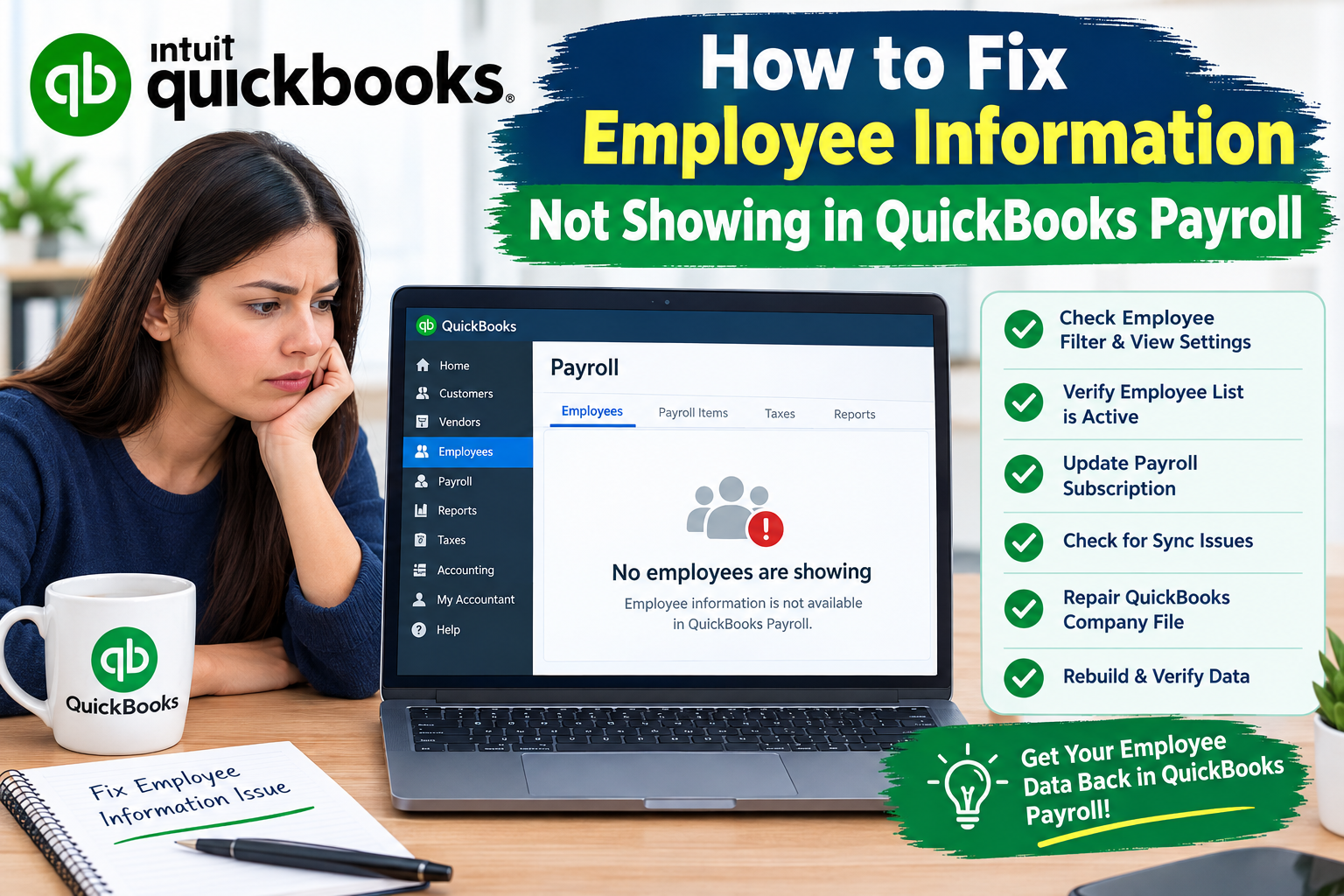
Accurate employee information is essential for running payroll correctly. When employee names, contact details, payroll information, tax details, pay rates, or employment information appear to be missing, payroll processing can become confusing and may require additional checking. If you are dealing with missing employee details, QuickBooks Payroll Support resources can help you identify the cause and work through the appropriate troubleshooting steps.
Employee information can become difficult to find for several reasons. An employee may be inactive, a filter may be hiding the record, the wrong company file may be open, or certain payroll fields may not have been completed. In QuickBooks Desktop Payroll, Intuit also identifies employee status, payroll schedules, and employment or release dates as common reasons an employee may not appear during payroll processing.
Check the Employee Center First
The Employee Center is one of the first places to check when employee details seem to be missing in QuickBooks Desktop.
Open QuickBooks and go to Employees > Employee Center. Review the employee list carefully and search for the affected employee.
If the employee does not appear in the active list, check whether inactive employees are being displayed. Intuit recommends selecting All Employees from the employee-list dropdown when looking for a missing employee. An inactive employee may still exist in the company file but may not appear in the active employee list.
Once you locate the employee, check the status and reactivate the record if appropriate.
Verify Whether the Employee Is Inactive
An inactive employee is not necessarily a deleted employee. QuickBooks can retain the employee record while excluding it from normal active-employee views.
To check:
-
Open Employees.
-
Select Employee Center.
-
Change the employee view to All Employees.
-
Locate the affected employee.
-
Review whether the employee is marked inactive.
-
Reactivate the employee when appropriate.
After making the change, return to the active employee list and verify whether the information is visible.
Do not immediately create a new employee record simply because the existing record is not visible. Creating another record can lead to duplicate information and make payroll records harder to manage.
Review Employee Profile Information
If the employee is visible but some details are missing, open the employee's profile and review the available sections.
Depending on your QuickBooks product and payroll service, employee information may include personal information, contact information, payroll details, taxes, employment information, pay rates, deductions, and other settings.
For QuickBooks Desktop Payroll, Intuit lists information such as pay schedule, pay type, pay rate, tax information, deductions, employment information, and other payroll settings as part of employee setup.
Review the profile carefully rather than changing multiple fields at once. This makes it easier to identify which setting is responsible for the problem.
Check Payroll Information
Sometimes an employee's general profile is visible, but payroll-related information is incomplete.
Open the employee profile and select Payroll Info. Depending on your setup, review:
-
Pay frequency
-
Payroll schedule
-
Pay type
-
Pay rate
-
Earnings
-
Deductions
-
Sick or vacation policies
-
Federal tax information
-
State tax information
-
Direct deposit settings where applicable
If required payroll information is missing, enter the correct information and save the employee record.
Employee setup requirements can vary depending on the QuickBooks Payroll service and configuration, so avoid assuming that every payroll account uses exactly the same fields.
Check the Payroll Schedule
A particularly important setting is the employee's payroll schedule.
An employee may appear in the Employee Center but fail to appear when you prepare a scheduled payroll if the employee is not assigned to the correct payroll schedule. Intuit specifically identifies an incorrect payroll schedule as a reason an employee can be missing from scheduled payroll.
To review it:
-
Open Employees > Employee Center.
-
Double-click the employee.
-
Select Payroll Info.
-
Find the Payroll Schedule field.
-
Select the appropriate schedule.
-
Save the employee record.
-
Run the scheduled payroll again.
If the employee now appears, the payroll schedule was likely the relevant setting.
Review Employment Dates
Employment information can also affect whether an employee appears during payroll processing.
Check the employee's Employment Info section and review the hire date, release date, or termination information.
According to Intuit, an employment release date or termination date can cause an employee to be missing from both scheduled and unscheduled payroll.
If an incorrect release or termination date has been entered, correct it according to the employee's actual employment status. Do not remove a legitimate termination date simply to make an employee appear in payroll.
Check for Missing State Information
Tax-related employee information deserves additional attention when payroll setup reports errors or incomplete information.
QuickBooks Desktop Payroll can identify cases where an employee is missing state information. Intuit recommends reviewing state information in the employee's payroll tax settings when applicable.
Review the employee's tax settings and verify that the appropriate state information has been entered.
This is especially important when an employee lives or works in a different state from the business location because additional state payroll setup may be required.
Look for Blank or Incorrect Employee Names
Employee information problems can sometimes be related to incomplete name fields.
For example, an employee may have information displayed in one part of the profile while the first or last name field is blank. Intuit also documents cases involving spaces or invalid characters in employee names that can cause payroll setup problems.
Open the employee profile and carefully review the first and last name fields.
Remove accidental spaces or invalid characters and make sure the employee's name is entered consistently.
Avoid making unnecessary changes to historical payroll information while correcting a basic employee profile issue.
Check Employee List Filters
Filters can make an existing employee appear to be missing.
If you cannot find an employee, review:
-
Active or inactive status
-
Employee list filters
-
Search terms
-
Payroll schedule
-
Date-related settings
-
Company file
-
User access
-
Payroll-specific filters
Start with the simplest possibility. If one employee is missing while others are visible, a profile or status setting may be responsible.
If many employees are missing at the same time, consider whether a filter, company-file issue, or access setting is affecting the entire list.
Make Sure You Are Using the Correct Company File
If you work with multiple QuickBooks company files, verify that you opened the correct one.
An employee record belongs to a particular company file. Opening another company file can make it look as though employee information has disappeared when the information is actually stored in a different file.
Check the company name and business information before making changes.
This is particularly important if your organization maintains separate files for different businesses, locations, fiscal periods, or entities.
Restart QuickBooks
A simple restart can sometimes help when information does not appear correctly.
Save your work, close QuickBooks, and reopen the application. Then open the correct company file and check the Employee Center again.
If you use a multi-user environment, also confirm whether the problem affects one workstation or multiple computers.
If the employee information appears correctly after restarting, the issue may have been temporary. If the problem continues, move on to the more specific checks.
Keep QuickBooks Updated
Software updates can include fixes and improvements that affect payroll functionality.
Check whether your QuickBooks Desktop installation is current and follow the normal update process for your version.
Before performing significant maintenance, create a current backup of your company file. A backup gives you a recovery point if an unexpected problem occurs during troubleshooting.
Do not download unofficial QuickBooks update files from unknown websites. Use trusted QuickBooks resources and verify that an update applies to your product and version.
Check Whether One or Multiple Employees Are Affected
Identifying the scope of the problem can make troubleshooting easier.
If only one employee is affected, concentrate on that employee's:
-
Status
-
Profile information
-
Payroll schedule
-
Employment dates
-
Tax settings
-
Pay information
-
Recent changes
If multiple employees are affected, investigate broader settings such as:
-
Employee filters
-
Payroll preferences
-
User permissions
-
Company file
-
Software updates
-
Payroll configuration
This simple comparison can help separate an individual employee-record problem from a broader payroll configuration issue.
Review User Access and Permissions
In environments with multiple QuickBooks users, access permissions can affect what information a user can view or modify.
If employee details appear correctly for one user but not another, compare the users' access settings.
Ask the QuickBooks administrator to review the relevant permissions rather than changing access settings without authorization.
This approach can also help protect confidential employee information.
Check Multi-User Mode
If your business uses QuickBooks Desktop in multi-user mode, determine whether the missing employee information is visible from another authorized workstation.
For example, if the information is missing on one computer but visible on another, the problem may be related to the local installation, user environment, or workstation configuration rather than the underlying employee record.
Do not repeatedly edit the employee record from different computers while diagnosing the problem. First determine whether the record itself is incomplete or whether only its display is affected.
Review Recent Changes
Think about what changed before the employee details disappeared.
Possible changes include:
-
A new employee was added
-
An employee was made inactive
-
A payroll schedule was changed
-
Employment information was updated
-
Payroll settings were modified
-
A QuickBooks update was installed
-
A company file was restored
-
A user account was changed
-
Payroll information was imported or edited
Knowing what happened immediately before the problem appeared can narrow down the troubleshooting process.
Watch for Duplicate Employee Records
Duplicate employee records can create confusion.
If the employee's name appears more than once, carefully determine which record contains the correct payroll history and information.
Do not delete an employee record simply because it appears duplicated. Existing payroll transactions may be associated with the record, and deleting or altering historical information without understanding the consequences can create additional problems.
Intuit documents duplicate employee records as one possible cause of certain payroll setup errors and recommends reviewing the employee list, including inactive employees, when investigating those errors.
Check Employee Details Before Running Payroll
Before creating a paycheck, review the employee's information carefully.
Pay particular attention to:
-
Employee status
-
Pay schedule
-
Pay frequency
-
Pay rate
-
Employment dates
-
Federal tax information
-
State tax information
-
Earnings
-
Deductions
-
Time-tracking settings when applicable
If timesheet information is missing from a paycheck, QuickBooks documentation recommends checking time-tracking preferences, employee time-data settings, pay frequency, payroll schedule, pay period, and payroll items.
Review Time-Tracking Settings When Pay Information Is Missing
If the employee appears in payroll but hours or timesheet information are missing, the problem may be related to time tracking rather than the employee record itself.
In QuickBooks Desktop, review the company's time-tracking preferences and the employee's payroll settings.
Intuit recommends checking whether time tracking is enabled and whether the employee profile is configured to use time data when creating paychecks.
Also confirm that the timesheet period matches the paycheck's pay period.
Protect Employee Information
Payroll records contain sensitive personal and financial information.
When troubleshooting missing employee details, avoid sharing employee Social Security numbers, bank account information, passwords, verification codes, or other confidential data in public forums.
If you need assistance, describe the problem without exposing sensitive employee information.
Use trusted support resources and keep your employee records protected throughout the troubleshooting process.
Create a Backup Before Major Changes
A current backup is an important precaution before making substantial changes to payroll records or company-file settings.
If you need to modify multiple employee records, review the information first and document what you intend to change.
For important payroll records, keeping organized backup copies can make recovery easier if an unexpected issue occurs.
When Additional Help May Be Useful
If employee details remain missing after checking employee status, payroll settings, schedules, employment information, filters, and user access, the problem may require more detailed investigation.
Before requesting assistance, prepare:
-
QuickBooks product and version
-
Payroll service information
-
Description of the missing information
-
Employee record affected
-
Exact error message, if any
-
Recent changes
-
Troubleshooting steps already completed
-
Whether other employees are affected
-
Whether the issue occurs on other authorized computers
Providing this information can make it easier to understand the problem without repeatedly testing the same steps.
A Simple Troubleshooting Checklist
Use this checklist when employee details are missing:
-
Open the Employee Center.
-
Check All Employees.
-
Confirm the employee is active when appropriate.
-
Review the employee profile.
-
Check Payroll Info.
-
Verify the payroll schedule.
-
Review employment dates.
-
Check tax information.
-
Review filters.
-
Confirm the correct company file.
-
Restart QuickBooks.
-
Check for available updates.
-
Compare the issue across authorized workstations.
-
Review recent changes.
-
Check for duplicate employee records.
-
Create a backup before major changes.
-
Seek additional assistance if the information remains unavailable.
Following these steps in order can help prevent unnecessary changes and keep the troubleshooting process organized.
Frequently Asked Questions
Why are my employee details missing in QuickBooks Payroll?
Employee details may appear missing because the employee is inactive, hidden by a filter, assigned to an incorrect payroll schedule, affected by employment dates, or missing required profile or payroll information.
Why can I see an employee but not during payroll?
Check the employee's payroll schedule and employment information. An incorrect payroll schedule can prevent an employee from appearing in scheduled payroll, while certain employment or release dates can affect payroll visibility.
Can an inactive employee still exist in QuickBooks?
Yes. An employee can remain in the company file while being excluded from the active employee list. Checking All Employees can help locate the record.
Should I create a new employee if the existing details are missing?
Not immediately. First check whether the original employee record is inactive, filtered, incomplete, duplicated, or stored in another company file. Creating a second record can create duplicate payroll information.
What information should I check in an employee profile?
Review the employee's name, contact information, payroll schedule, pay type, pay rate, tax information, deductions, and employment information as applicable to your QuickBooks Payroll setup.
What if only one employee has missing information?
Focus on that employee's profile, status, payroll schedule, employment dates, tax settings, and recent changes. If other employees are working normally, an individual record or configuration is more relevant to investigate.
What if several employees are missing?
Check employee filters, payroll settings, user permissions, company-file selection, and other broader configuration issues before editing individual records.
Keep Employee Records Organized
Missing employee details can interrupt payroll preparation, but the problem can often be narrowed down by checking the employee record systematically.
Start with visibility and employee status, then review the employee profile, payroll schedule, employment dates, tax information, and other payroll settings. If the issue affects multiple employees, investigate broader settings such as filters, user access, company files, and software configuration.
Most importantly, avoid making unnecessary changes to employee records while troubleshooting. Maintain backups, protect confidential information, and document the steps you take.
A structured approach can make it easier to identify why employee information is missing and help keep payroll records accurate and organized.

 English
 Arabic
 French
 Spanish
 Deutsch
 Turkish
 Dutch
Dutch
 Italiano
 Russian
 Romaian
 Portuguese (Brazil)
 Greek
Greek